Managing group payments can be a full-time headache, especially when your contributions are split across multiple bank accounts for different activities. One for savings, another for monthly contributions, maybe a third for events or emergencies.
If you’re the treasurer, you know the struggle:
1. Did this money go to the right account?
2. Was this payment for savings or contributions?
3. Now I have to cross-check everything again.
It’s easy to mix things up. Manual tracking becomes overwhelming, and accountability starts to slip.
Think about it, group members rarely specify which payment is for what. One sends Ksh 1,000 with no note, another sends a lump sum saying, “That’s for last month and savings,” and suddenly you’re juggling receipts, backtracking conversations, and trying to match transactions to the right accounts. It’s not just tiring it opens the door to errors, misunderstandings, and misplaced funds. For treasurers, this turns a simple group contribution into a stressful, manual reconciliation process that repeats every single month
That’s why Nobuk is here, to help take this burden off your shoulders. You can now link each collection category to its own bank account so when members select what they’re paying for, the money goes exactly where it should, automatically.
Let’s get started:
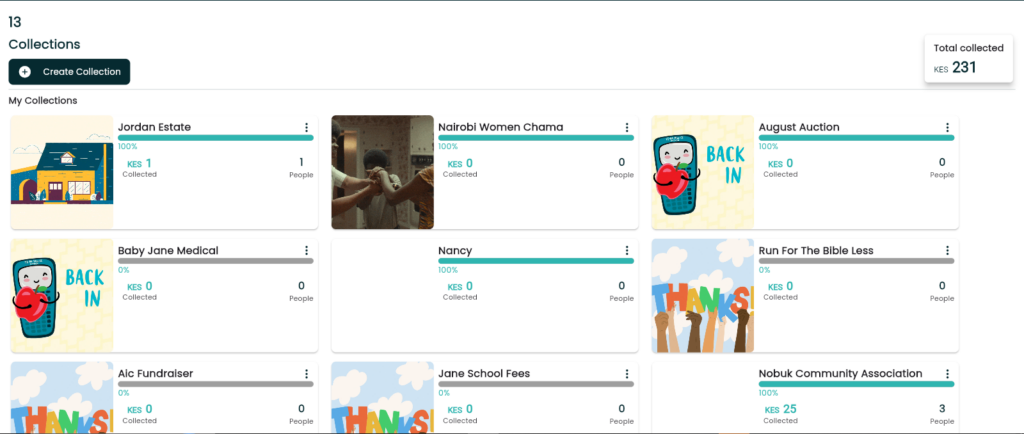
STEP 1. Click on the collection you want to make this change on
On your dashboard you will find all the collections that you’ve set up, select the collection that you desire to make the category account changes on.
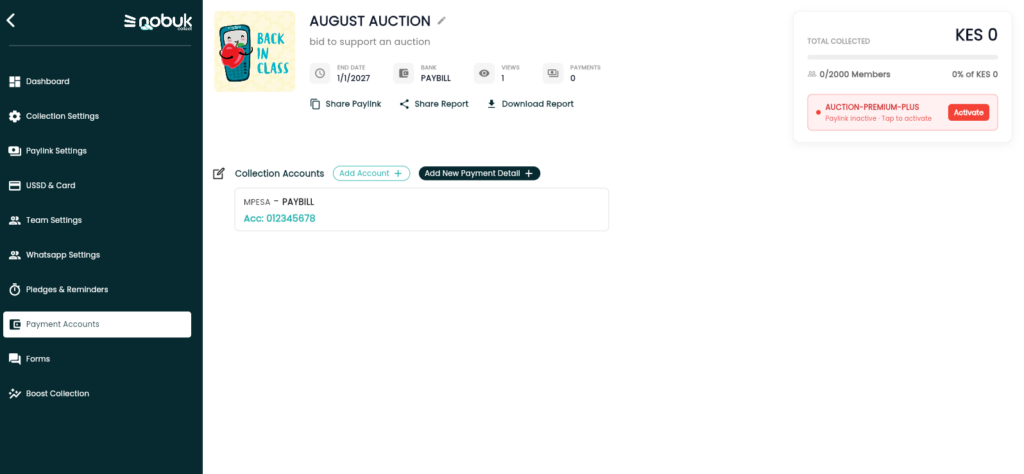
STEP 2: Click on payment accounts on the menu
The next page you will land on after clicking on your desired collection will be your collection dashboard which will look like either of the two depending on the gardet you are using.
Select on Collection settings for the menu
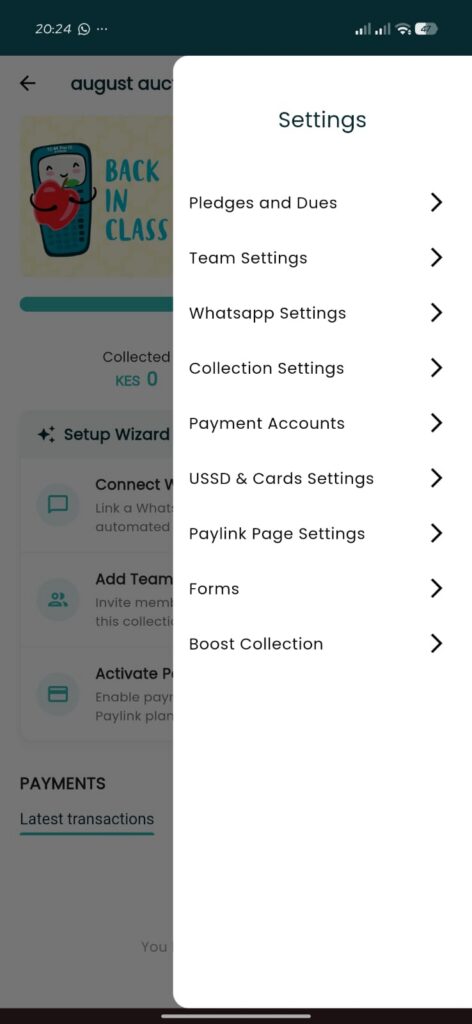
If you are using a phone you will click on the three dots at the top right corner in order to access the menu. On the menu select payment accounts settings.
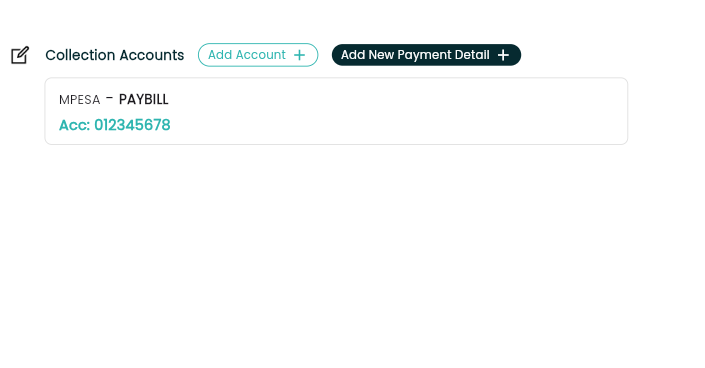
STEP 3 Click on the ‘Add account’ button
On the payment account setting you will see collection accounts ,add account and add new payment detail
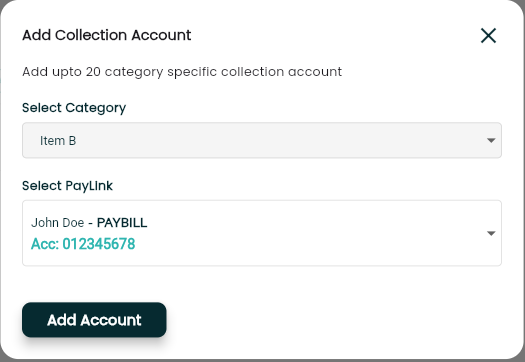
This will enable you to add account to the different categories you are having for your collection.
The page above will be what you see when you click on the button. Select a category you want to set up the different account for then click on add account
Now you can share the paylink with your group and get started managing group payments without hustle.
N/B : Only the person who created the collection can add different payment account for different categories.
Leave a Reply